Correct Monitor Height and Distance: Desk Ergonomics Explained
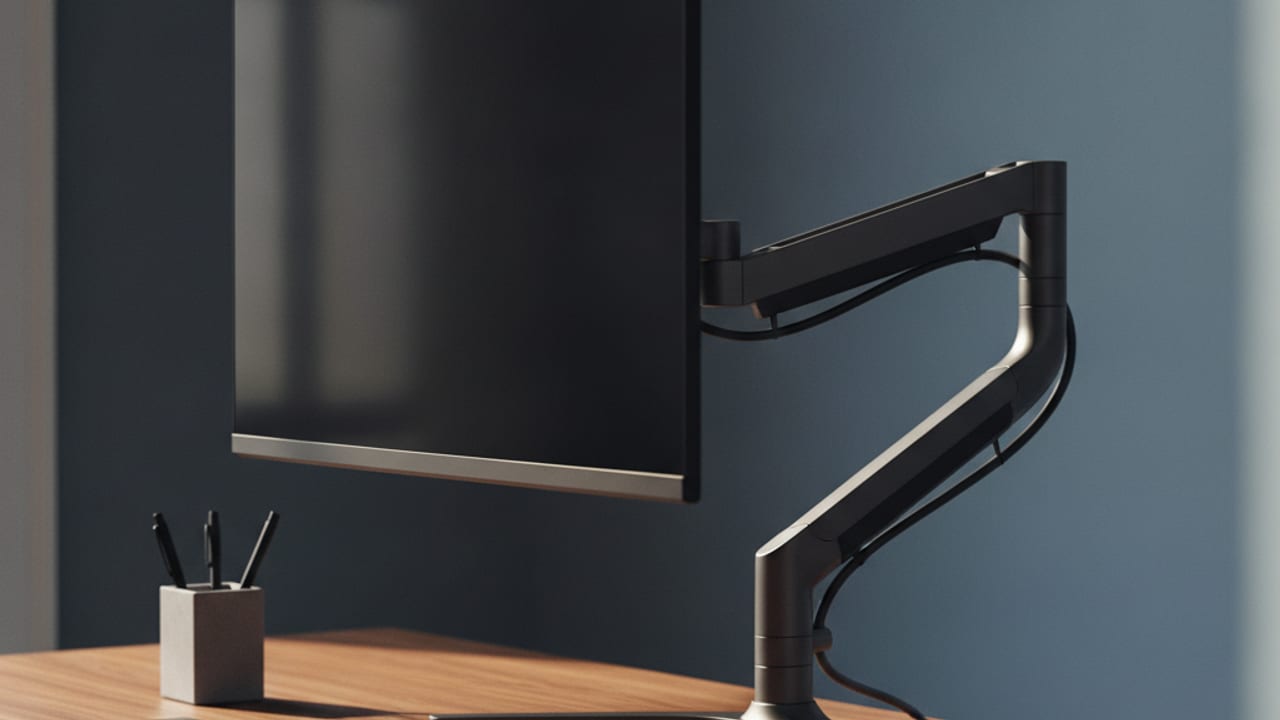
Set the top of your monitor at, or slightly below, eye level, position the screen roughly an arm's length away, about 50 to 75cm, and tilt it back by 10 to 20 degrees. That is the correct monitor position for most people, and it takes about two minutes to check.
Simple as the rule is, most desks in Britain get it wrong, usually because the monitor is sitting on the stand it shipped with, which is almost always too low. This article explains why the rule works, how to set your screen up properly with whatever you have to hand, and where laptops and second monitors complicate the picture.
Why monitor height matters more than you think
Your head weighs around 5kg. When your screen sits too low, you tip your head forward to look at it, and your neck and upper back muscles spend the whole day holding that weight out of balance. The further forward the tilt, the harder those muscles work. Multiply that by eight hours a day and you get the familiar pattern of home working complaints: stiff neck, tight shoulders, tension headaches by Thursday.
The fix is not better posture discipline, because nobody can consciously hold their neck all day. The fix is moving the screen so that a neutral, relaxed head position happens to point straight at it. Get the equipment right and good posture stops being an effort.
Height is the big one, but distance matters too. Too close and your eyes work harder to converge on the screen; too far and you creep forward in your chair to read, which drags your whole spine out of position. UK Health and Safety Executive display screen guidance says much the same thing in drier language: screen at a comfortable height and distance, eyes level with the top of the display area, no twisting to view it.
How to set your monitor up properly
Work through these in order. You need a tape measure at most, and honestly you can do the whole thing by feel.
- Sit properly first. Chair height so your feet are flat and elbows sit at about 90 degrees at the keyboard. Screen position is measured from where your eyes actually are, so fix the chair before the monitor.
- Set the height. Look straight ahead with a relaxed neck. Your eye line should meet the top edge of the screen, or a few centimetres below it. In practice the centre of the screen ends up 5 to 10cm below eye level. If you wear varifocals, set the screen lower still, because you read through the bottom of the lens.
- Set the distance. Sit back and stretch out your arm: your fingertips should just about brush the screen. For a 24 inch monitor that lands around 50 to 60cm; bigger screens can sit further back. If you find yourself leaning in to read, increase the text scaling in your operating system rather than pulling the screen closer.
- Tilt it back. Angle the screen 10 to 20 degrees away from vertical, so it faces your eyes squarely rather than your chin. This also cuts reflections from ceiling lights.
- Square it up. The screen should sit directly in front of you, centred on your keyboard, not off to one side. A screen you glance at side on all day is a slow motion neck twist.
A stack of books under the stand does the job perfectly well as a test. If the improvement is obvious after a week, that is your cue to sort a permanent solution.
The cleanest fix for screen height is a monitor arm: full height, depth and tilt adjustment, plus your desk space back.
See our best monitor arms UK guideThe laptop problem
A laptop on a desk breaks the rule by design. The screen is hinged to the keyboard, so if the keyboard is at the right height for your elbows, the screen is 20 to 30cm too low, and you spend the day looking down at it. No amount of adjusting your chair fixes this, because the two things that need to be at different heights are welded together.
There are two honest solutions. The budget one: a laptop stand, or that stack of books, raising the screen towards eye level, plus a separate keyboard and mouse, which together cost less than most people expect. The tidier one: a proper external monitor at the correct height with the laptop closed or off to the side. Either way, the separate keyboard is not optional. A raised laptop with no external keyboard just moves the problem from your neck to your wrists.
Dual monitors, ultrawides and big screens
The same principles extend to fancier setups, with one question deciding everything: how do you split your time between screens?
- Roughly 50/50 use: place the two monitors symmetrically, meeting directly in front of your nose, angled slightly inward like an open book. You turn your head a little both ways rather than a lot one way.
- One main, one reference: put the main screen dead centre, exactly as if it were your only monitor, and the second screen beside it angled in. Your neutral position should face the screen you use most.
- Ultrawide: treat the centre of the panel as your main screen and centre it on your keyboard. Curved ultrawides exist precisely so the edges stay a consistent distance from your eyes.
- 27 inch and larger: push it further back, 60 to 75cm or more, and scale text up. A big screen at close range forces your eyes and neck to sweep a wide area constantly.
Matching heights matter more with two screens than one. Mismatched stands leave one screen a few centimetres lower, and your neck pays the difference hundreds of times a day. A dual monitor arm solves the height matching problem outright, which is one reason we rate them for two screen setups.
Common mistakes worth fixing today
- Using the stand from the box. Most bundled stands hold the screen top well below eye level for an average adult and offer little or no height adjustment. This is the single most common ergonomic fault on UK desks.
- Screen too high. The over correction. If you have to lift your chin, the screen is too high, which strains the neck in the opposite direction. Eyes level with the top bezel, not the middle.
- Perching the monitor on a windowsill or off to the side because desk space ran out. A clamp on arm frees the footprint and puts the screen back in front of you.
- Leaning in as the day goes on. Usually a text size problem, not a distance problem. Bump the scaling and stay sat back.
One clamp, two minutes with an Allen key, and your screen floats exactly where your neck wants it.
Read the best monitor arms UK guideFrequently asked questions
Should the top or the middle of the monitor be at eye level?
The top. With the top edge at or slightly below eye level, your natural gaze falls on the upper third of the screen, where most work happens, and your eyes travel slightly downward to read, which is their relaxed direction. Centring the screen on your eye line pushes the top too high and tips your chin up.
How far away should a 24 or 27 inch monitor be?
Arm's length is the working rule: around 50 to 60cm for a 24 inch screen, and 60 to 75cm for a 27 inch. The real test is whether you can read comfortably while sitting fully back in your chair. If not, increase the operating system text scaling rather than moving the screen closer.
Do I need a monitor arm, or is a stand enough?
A fixed riser or a sturdy stack of books gets the height right, and if that is all you need, spend nothing more. An arm earns its money when you want depth or tilt adjustment too, when you share a desk with someone a different height, when you run two screens that need level matching, or when desk space is tight, because the clamp returns the whole footprint of the stand.
Where should the monitor go if I wear varifocals?
Lower than the standard advice, and tilted back a little more. Varifocal wearers read through the bottom portion of the lens, so a screen at standard height forces the chin up all day. Drop the screen so you can read the top of it through the reading zone with a level head. Some people do better with dedicated single vision screen glasses for long desk days.